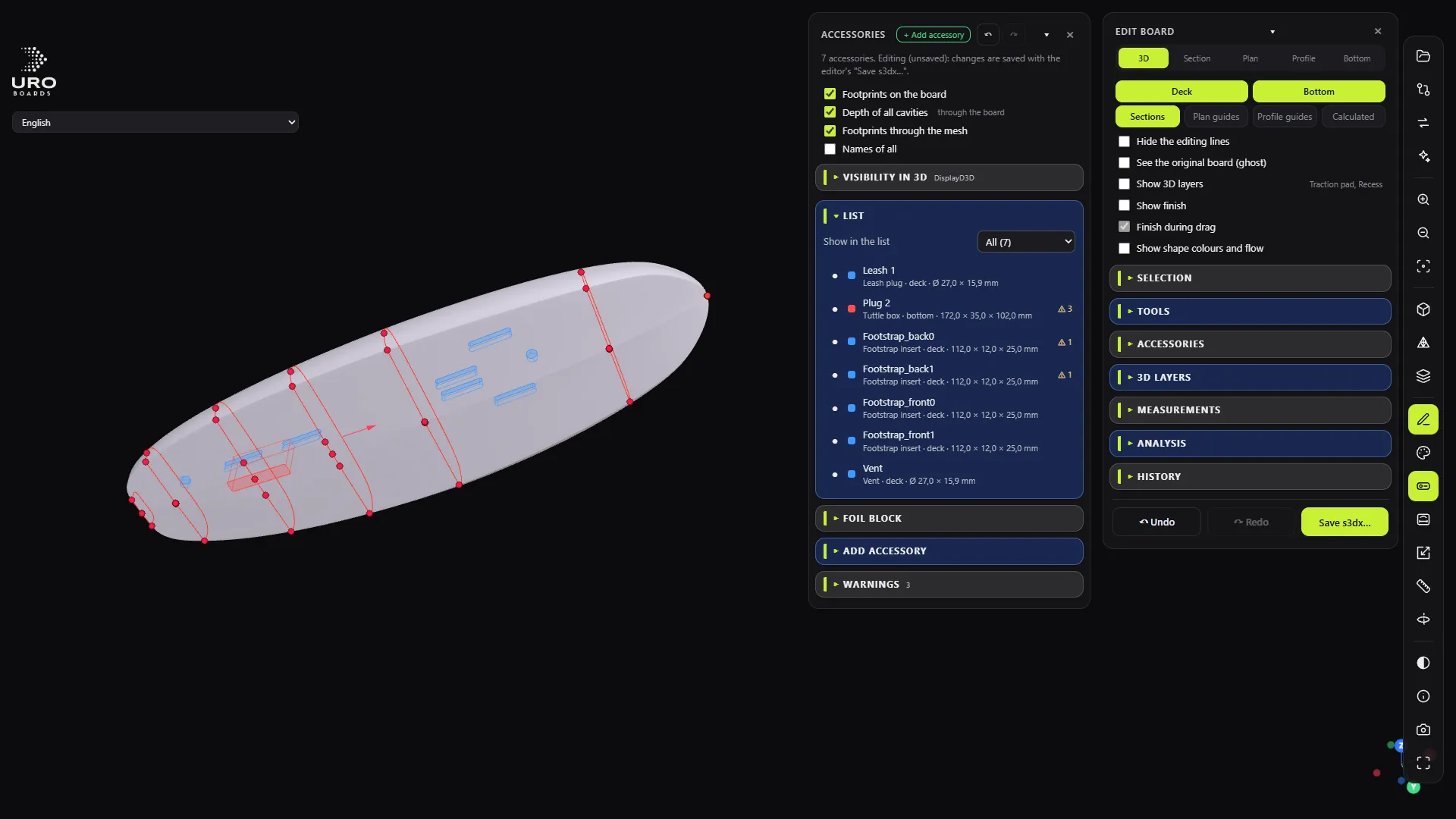
Accessories are whatever goes into the foam: leash plugs, valves, fin boxes, foil tracks, tuttle boxes, footstrap inserts and handles. The program reads them from the .s3dx, draws them on the board and lets you move them, change them or add new ones.
Viewing the accessories
With a .s3dx open, press P or the Hardware button. The ACCESSORIES panel has a LIST, the DETAIL of the one you’ve picked and the WARNINGS.
Colours on the board: blue = on the deck, red = on the bottom, grey = hidden in 3D, yellow = selected. Pairs show on both sides.
For the selected accessory you see its type, measurements, face, distance to the tail, the nose and the rail, and the material left to the other face.
Warnings pop up when:
- the cavity leaves less than 5 mm to the other face, or goes right through it;
- two accessories overlap;
- one sticks out of the outline or doesn’t sit on the surface.
Without the editor, the panel is read-only: “Press E to edit or add accessories.”
Editing
Open the editor (E) and then P. Pick an accessory and change:
- Name; Tail, Axis and Rail in mm.
- Deck or Bottom.
- Loose (one side), Symmetric pair or Centered on the axis. There’s also the Center on the axis button.
- Rotation (toe) in degrees.
- Hide in 3D, Duplicate and Delete (Del).
Drag the accessory on the board or move it with the arrow keys: 1 mm per press (Shift 0.1 mm; Ctrl 10 mm). Anything tied to another accessory, like the second insert of a pair, moves with it.
When you save, the accessories follow the shape: if you thin the board out or change the rocker, their height and dimensions are recalculated.
Adding: catalogue, another board or kit
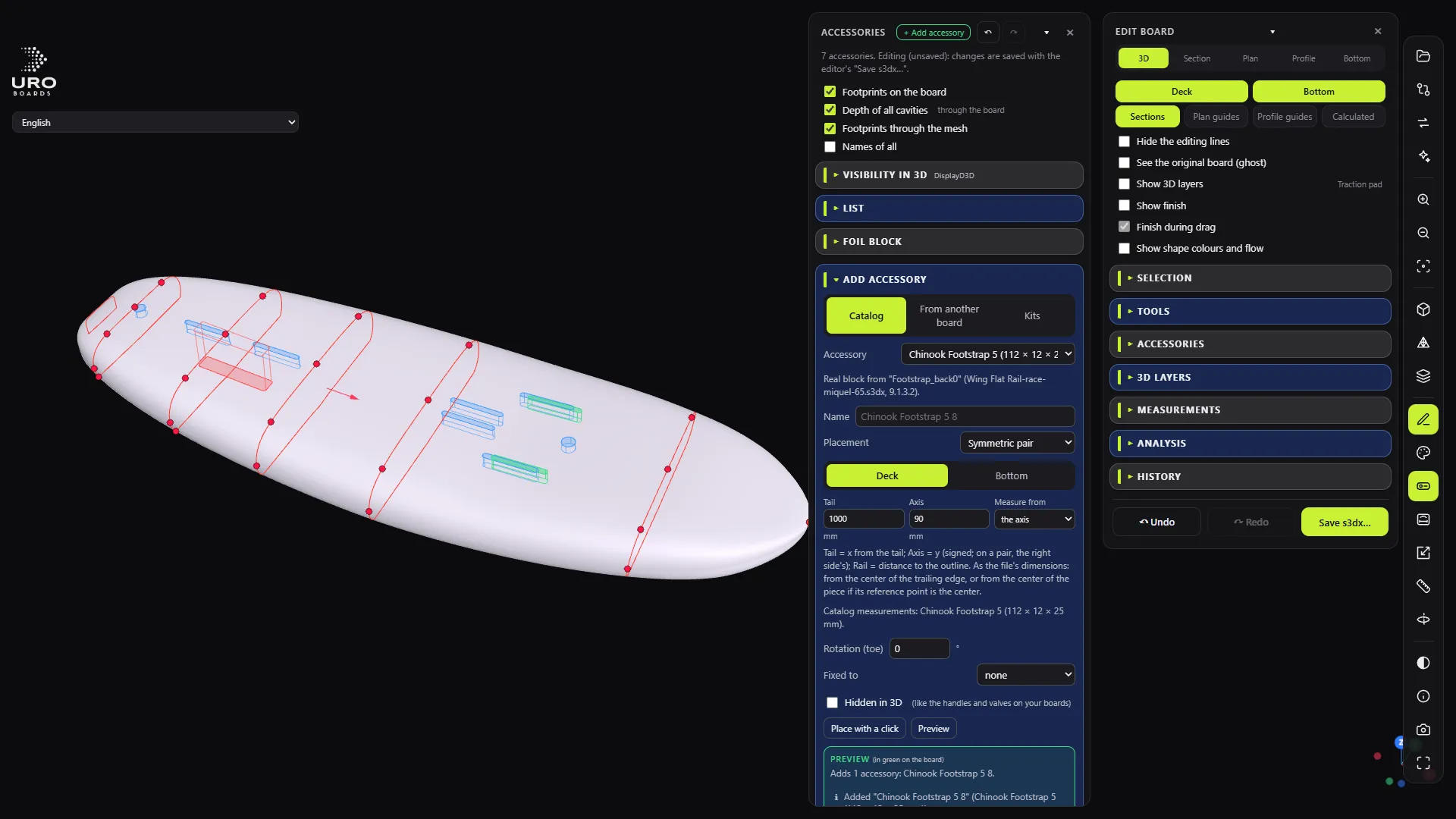
The + Add accessory button opens ADD ACCESSORY with three tabs:
- Catalog: 17 accessories with real blocks from URO boards. Custom box, leash plug, valve, 10.5” and 15” US boxes, 35 cm foil tracks, 300 and 400 foil boxes, tuttle, footstrap inserts, screw, vent and handles.
- From another board: pick a .s3dx with Choose board…, tick what to copy and whether to Add to the existing ones or Replace the existing ones.
- Kits: complete setups from URO boards, with the track spacing and their distance from the tail as parameters.
You place them with dimensions or with Place with a click. Preview draws the new parts in green with their warnings before you click Add.
Changing the type in place
In the Type field of the selected accessory, choose another one from the catalogue and click Change type. It keeps the name, position, face, placement, rotation and whatever is tied to it. Only the measurements and the type data change.
Visibility in 3D
VISIBILITY IN 3D shows which accessories are hidden in the file (lots of handles and valves are). With the editor open: Show all, Hide all or by type. Anything hidden isn’t drawn in 3D or cut into the STL.
Foil block
FOIL BLOCK adds the PVC piece that holds the two foil boxes. It can be shown, stay hidden while keeping its cavity, or not appear at all.
Cavities in the STL
With the Include boxes and plugs checkbox ticked when you export, every accessory visible in 3D cuts its cavity into the mesh, at the depth set in the file. It warns you if a cavity goes through the other face or comes out through the rail.
Limits: there’s no catalogue entry for types without a real block in URO boards. To get them, create them in your design program and use From another board. Accessories can’t be added to asymmetric boards.