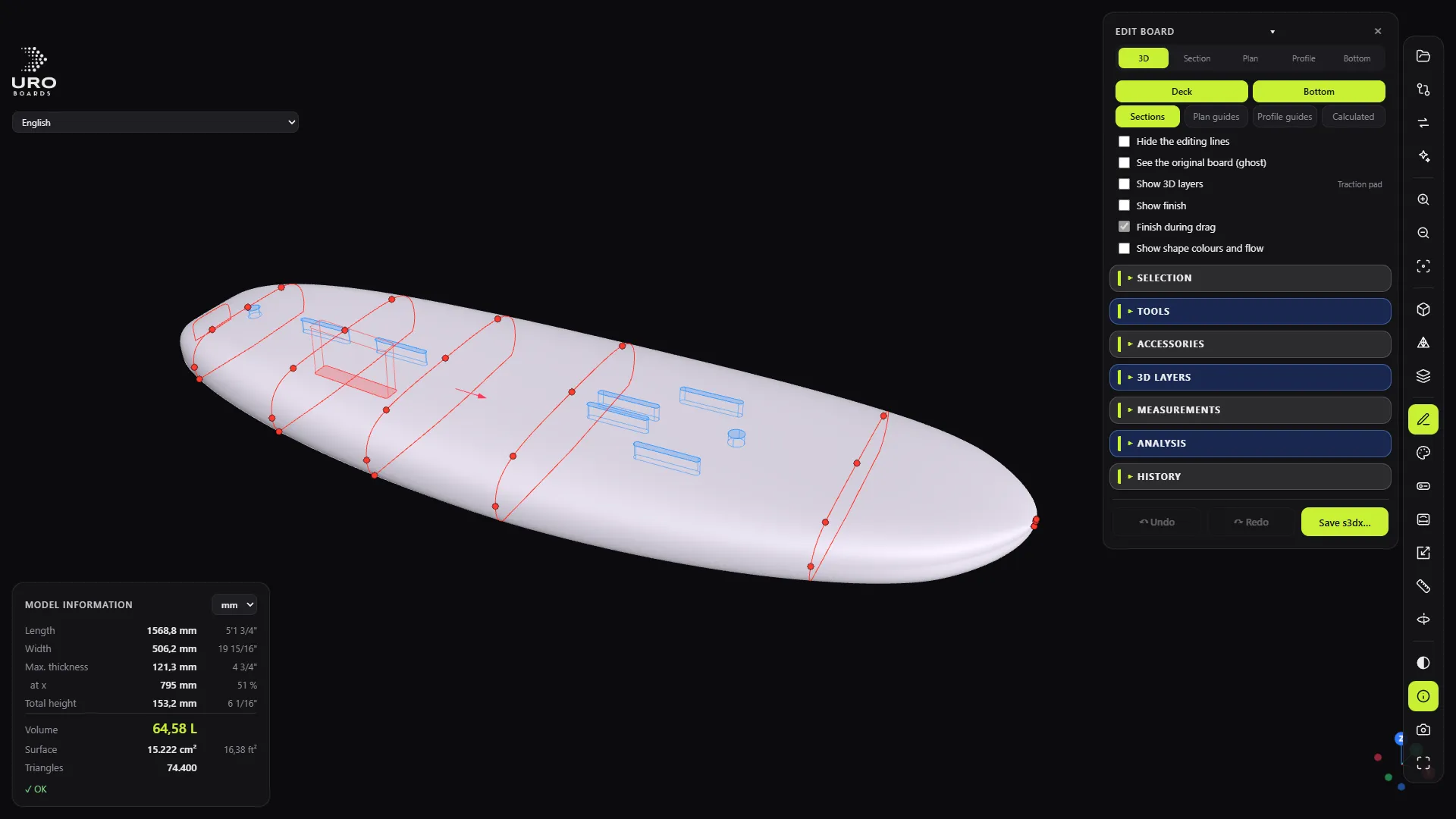
The editor opens the .s3dx and lets you change the shape in two ways: by moving points, or with tools that work the way a shaper does. Open it with the E key or the Edit button (the pencil). It only works with a .s3dx open.
Saving always creates a new file. The original stays untouched.
Views
In the header of the EDIT BOARD panel you have five views, each with its own key:
- 0 3D · 1 Plan · 2 Section · 3 Profile · 4 Bottom.
In Section, Tab or the arrow keys (with nothing selected) jump to the next section. The Deck and Bottom buttons hide one face so you can see the curves inside.
Points, nodes and sections
The SELECTION section gathers all the point-by-point editing:
- Select: click a point; Ctrl+click adds to the selection; Shift+drag draws a box; Esc clears the selection.
- Move: drag, or use the arrow keys. The step depends on the zoom; Shift divides it by 2, Ctrl by 4 and Shift+Ctrl by 10. You can also type in the coordinates in mm, or relative to another point.
- Nodes: double-click on a curve to add a node without changing the shape; Del deletes it. There’s also + Node and − Node.
- Sections: + Section (at an x) and − Section. Drag a section’s line to move it.
- Tangent: Continuous, Angular (corner), Vertical or Horizontal.
- Group: Align ↔, Align ↕, ⟂ mm…, Rotate…, Arc and Paste from original.
The master guide curves are in charge, just like in Shape3d: if you move a point driven by a guide, the guide moves.
Shaper’s tools
In TOOLS you pick one, move its sliders with a live preview and click Apply (or Cancel).
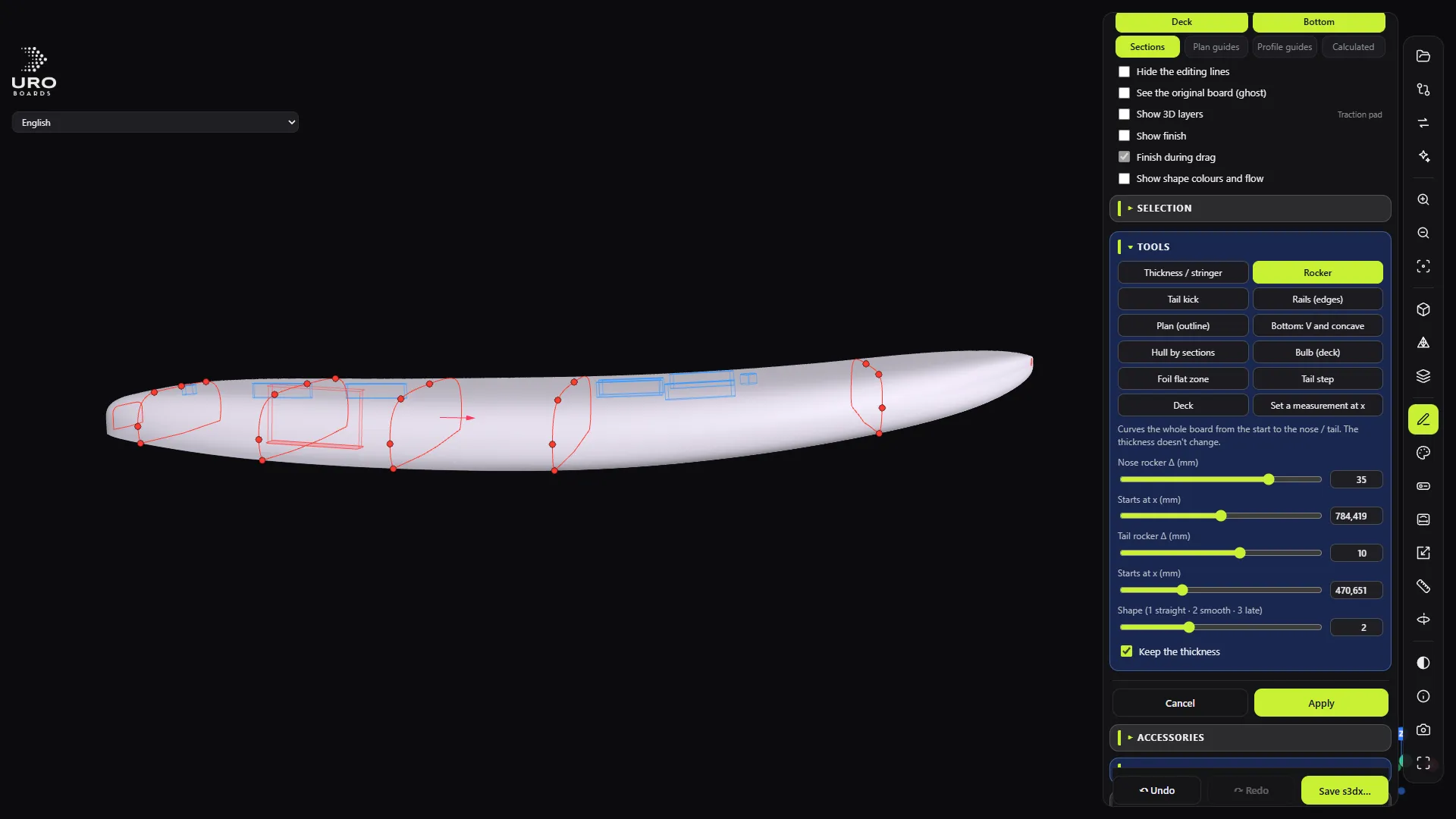
- Thickness / stringer: raises or lowers the deck around an x. The bottom doesn’t move.
- Rocker and Tail kick: bend the board or lift the tail.
- Rails (edges): soft or sharp edge, thin or full rail, apex and chine height, bevel.
- Plan (outline): width around an x and position of the maximum width.
- Bottom: V and concave and Hull by sections (flat, V, single concave or double concave).
- Deck (dome) and Bulb (deck) at the nose or the tail.
- Set a measurement at x: width, thickness or rocker at an exact point.
- Foil flat zone: a flat bottom under the foil boxes.
- Tail step: the bottom steps up sharply at the tail.
Live measurements and analysis
MEASUREMENTS compares Original and Now: volume, length, width, max. thickness, and tail and nose rocker. ANALYSIS adds the curvature comb, measuring bars at 300 mm from the tail and nose, the volume distribution and the centre of volume. See the original board (ghost) keeps it on screen as a reference.
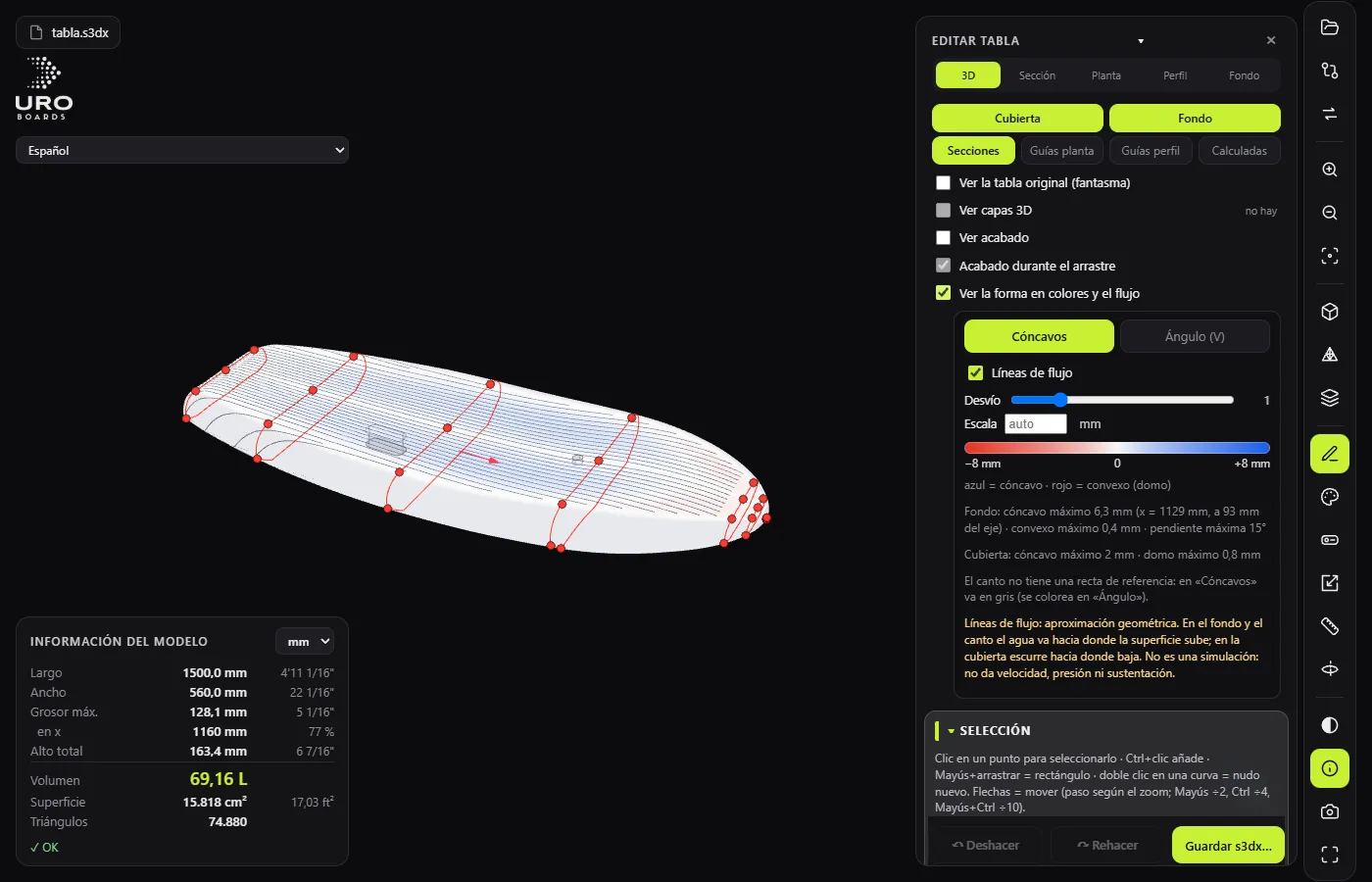
Hull colour map and flow lines
Tick Show shape colours and flow. In Concaves, blue is concave and red is convex. In Angle (V) you see how much the surface rises towards the rail. The Flow lines show where the shape sends the water. It’s a geometric reading, not a simulation.
3D layers
3D LAYERS manages the pad, deck recesses (Rounded rectangle, Oval, Free or Follow the rail), Tail cut, Bottom cutout and cut rail.
History and saving
HISTORY lists every change: click a step to go back to it. Ctrl+Z and Ctrl+Y undo and redo. Save s3dx… suggests a …_EDIT.s3dx name, re-reads the file to check the volume, and you carry on editing from what you saved.