Before this: A tour of the interface.
A template is a complete board to start from: shape, sections and, in some cases, 3D layers and accessories. The program comes with 17. Here you pick one, save your copy and open it in the editor.
1. Look at the types
On the start screen, scroll down to Start from an included template. There’s one card per board type, showing how many templates it has:
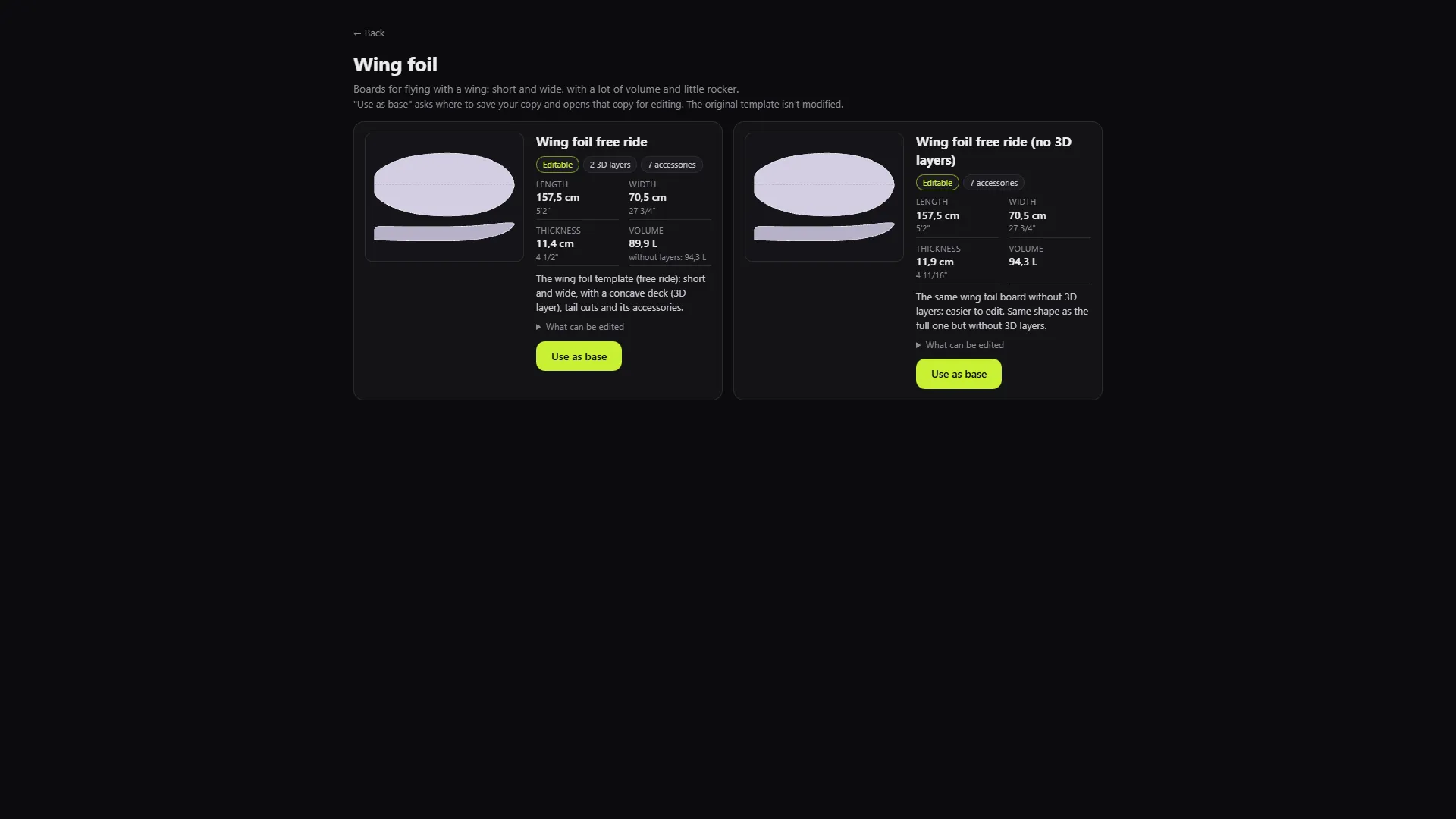
- Wing foil: free ride, with and without 3D layers.
- Surf: shortboard, fish, mid-length, gun and longboard.
- Windsurf: race and wave.
- Kitesurf: no templates of its own. The short surf ones (shortboard and fish) are offered as a base.
- SUP: race, surf and downwind foil.
Some templates come in two versions: full and without 3D layers. The version without layers has the same shape, but no pad, recesses or tail cuts. It’s easier to edit if you’re just starting out.
2. Pick a template
Click the type card, for example Wing foil. Each template shows:
- its outline and profile silhouette;
- Length, Width, Thickness and Volume;
- how many 3D layers and how many accessories it has;
- whether it’s Editable or View only, and What can be edited.
To go back to the list of types, click ← Back.
3. Save your copy
Click Use as base. The program asks you where to save your copy.
- Pick your project folder.
- Change the name if you like.
- Save.
If a file with that name already exists, it won’t overwrite it: it suggests another one, for example with “(2)”.
Result: “Copy of … saved to …”. The viewer opens that copy, not the template.
If the template is View only, the button is Open a copy to view it: you can look at it and measure it, but not edit it.
4. Edit it
Press E to open the shape editor. Everything you change goes into your copy. The original templates are never modified.
Tip: if you only want to change length, width or litres, you don’t need to come through here. Use Create from photos or measurements: it starts from the same template and fits it to your numbers.
5. Watch out for sample logos
Some templates come with sample logos. In Finish mode they may show up, or appear as an orange box if the image is missing.
Before you render, go into Finish (A), LOGOS section, and remove any that aren’t yours with Remove logo or the Del key. Boards created with Create from photos or measurements start without those logos.
6. Open your copy again
Your copy appears under Recent files on the start screen. One click and you’re back in. If you’ve moved it to another folder, you’ll see “No longer found in that folder”: open it with Open file (STL / s3dx)….
Next step
With your copy open, carry on with the tutorial on editing the outline, rocker and thickness.