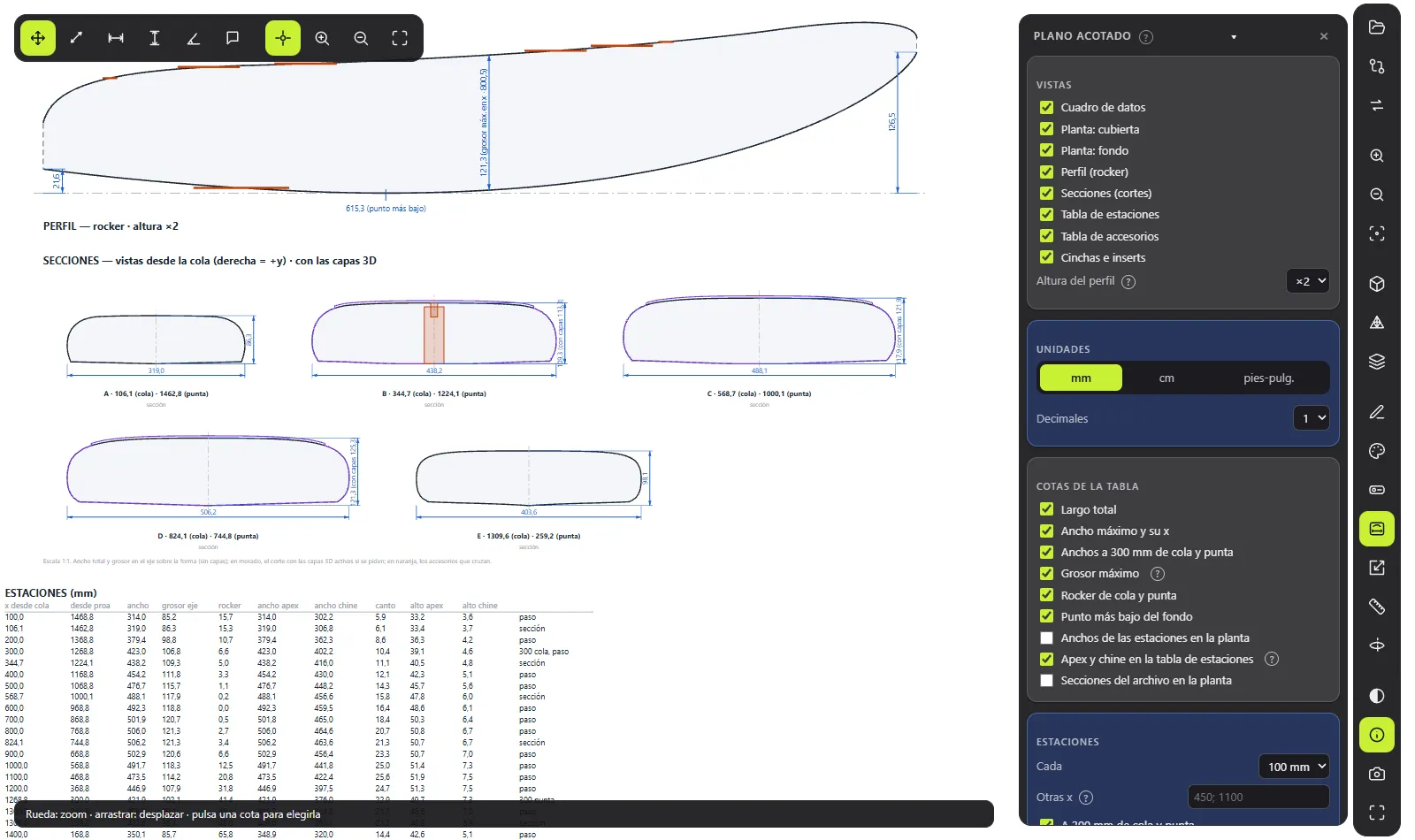
The dimensioned drawing shows the board with its measurements, ready to check on screen, print or send to the workshop. It only reads: it doesn’t change the .s3dx or the STL.
Open it with the B key or the Dimensioned drawing (B) button. With the editor open, the drawing is of the board you’re editing. With a standalone STL you only get the plan and the profile.
Getting around the drawing
Wheel = zoom, drag = pan, F = fit, B or Esc = exit. The DIMENSIONED DRAWING panel is split into sections you can fold and unfold.
Views
In VIEWS you choose what goes on the sheet:
- Data block: file, date, length, max. width, max. thickness, rocker, widths at 300 mm and volume.
- Plan: deck and Plan: bottom.
- Profile (rocker), with an exaggerated Profile height if you want to see the curve better. The figures are always the real ones.
- Cross-sections (cuts), Station table, Fitting table and Footstraps and inserts.
Units
mm, cm or ft-in, with as many Decimals as you like or inch fractions.
Board dimensions and stations
BOARD DIMENSIONS sets which measurements are drawn: overall length, max. width and its x, widths at 300 mm from the tail and nose, max. thickness, tail and nose rocker, lowest point of the bottom, apex and chine.
STATIONS adds measurements at a set interval (Every), at specific x positions (Other x, up to 40), at 300 mm from the tail and nose, or at the file’s sections.
Fitting dimensions
FITTING DIMENSIONS dimensions the boxes, inserts, plugs and the PVC block:
- from the tail to the rear edge or the centre, or from the nose;
- distance to the centreline and to the rail;
- spacing between pairs;
- size (length × width × depth) and angle (toe).
The Like the plan sheet in the file button uses the dimensions each accessory sets in its block in the .s3dx, as on the Shape3d plan sheet. Back to my dimensions undoes the change.
Sections, footstraps and layers
CROSS-SECTIONS draws the board’s cuts seen from the tail, at 1:1 scale, with width, thickness and the accessories that cross the cut. If the board has 3D layers, the cut with layers is shown too.
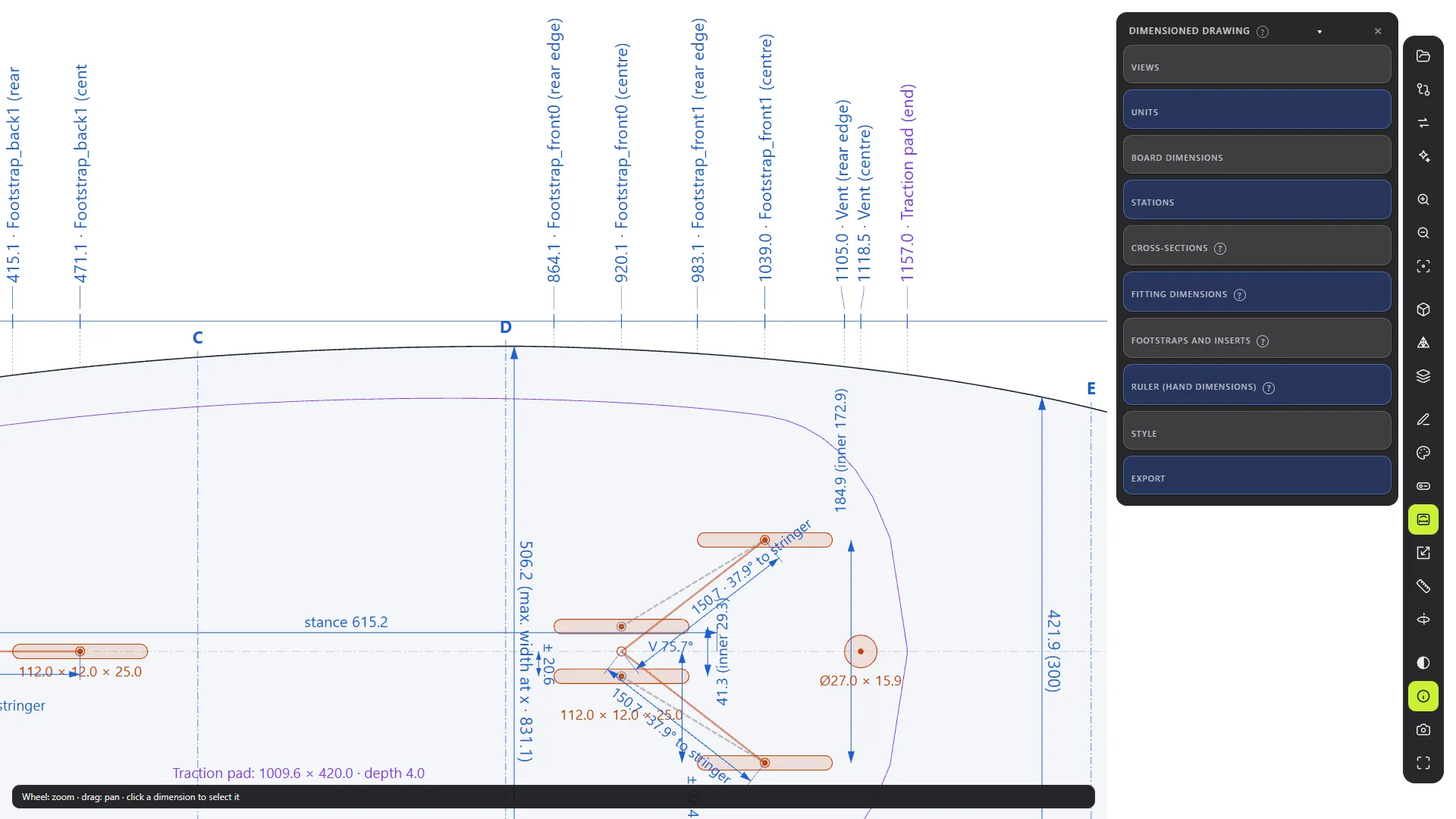
FOOTSTRAPS AND INSERTS draws each strap’s line, the spacing between inserts, the angle to the centreline and the stance (distance from the back strap to each front strap).
Ruler: hand dimensions
In RULER (HAND DIMENSIONS) you pick a tool from the bar at the top (keys 1 to 6) and click points on the drawing. The dimensions snap to nodes, outline, centreline, apex, chine, boxes and other dimensions (Alt or S to stop snapping). With Move and select (1) you pick a dimension and drag its points; Del deletes it. They’re saved with each board and follow whatever they snapped to if you edit the shape.
Export
In EXPORT:
- Save SVG… and Save PDF 1:1…: 1:1 scale, 1 unit = 1 mm, with the whole sheet and your dimensions. The PDF needs Microsoft Edge, which comes with Windows.
- Save PNG…: for sending or viewing, at 2000, 4000 or 8000 px wide.
The drawing settings are the same for every board. Hand dimensions belong to each board.