Before this: Install URO Board Designer and sign in, Design by talking to your AI.
No AI subscription? You can design with OpenCode, a free app that comes with free AI models. You’re going to install it, pick a model and connect it to URO Board Designer.
You need Windows 10 or 11, an internet connection for the AI and URO Board Designer installed.
1. Install the OpenCode desktop app
Go to opencode.ai, find the desktop app download and get the Windows installer. Run it and follow the steps.
Common mistake: installing another version from the terminal. Many guides online give npm i -g opencode-ai, which installs the old version 1. With the desktop app you don’t need the terminal at all.
2. Pick a free model
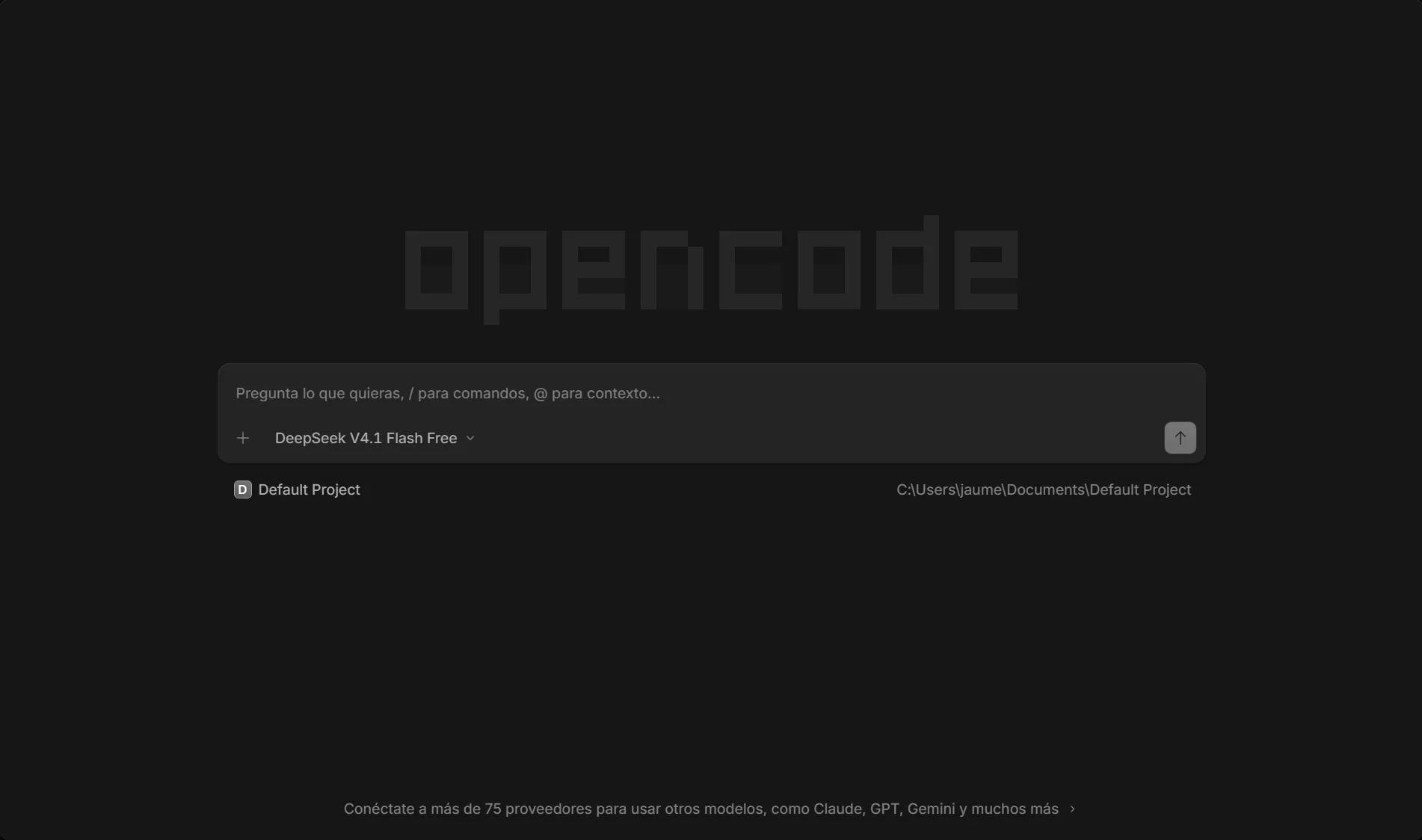
Open OpenCode. It doesn’t ask for an account or sign-up. Start a new session and, below the text box, click the model name to open the list. There are lots of free ones: they carry a Free tag next to the name. For example Big Pickle, DeepSeek V4.1 Flash, GLM-5.3-Flash, Iceman, Inkling 2 Small, Crouton Alpha, Flint 40B, Nemotron 3.5, Beam or MiMo-V2.6-Flash.
Two good ones to start with:
- DeepSeek V4.1 Flash
- GLM-5.3-Flash
Your designs stay yours: these two models don’t keep what you send them or use it for training. Other free models on the list may keep it or use it for training: read their note before showing them a customer’s design.
Free models are free for a limited time and the list changes. If one is slow or gives a limit error, wait a while or try another.
3. Copy the connection text from URO Board Designer
In URO Board Designer, on the start screen, click Connect your AI or press G.
Scroll down to Another AI and click Copy on the block under “add this block to its settings”. The block already contains the program’s path on your computer.
4. Paste it into OpenCode
Paste the block into the OpenCode chat with this sentence before it:
“Add this MCP server to your global configuration with the name board-designer:”
Result: OpenCode writes it into its configuration file. It ends up like this (the path is your own user’s):
{
  "$schema": "https://opencode.ai/config.json",
  "mcp": {
    "servers": {
      "board-designer": {
        "type": "local",
        "command": [
          "C:\\Users\\YOUR_USER\\AppData\\Local\\Programs\\URO Board Designer\\BoardDesigner.exe",
          "--mcp"
        ]
      }
    }
  }
}
The file is %USERPROFILE%\.config\opencode\opencode.jsonc. If you’d rather add it by hand, copy that block and replace YOUR_USER with your Windows user name. The backslashes in the path are doubled (\\).
5. Restart OpenCode and check
Close OpenCode completely and open it again. Then type /mcps.
Result: board-designer shows as connected. OpenCode doesn’t have its own row under Your AI apps in the panel: that’s why you use the Another AI block, which works for any AI.
6. First test
At first the AI can only look. Under Folders the AI can read, add the folder with your boards and type in OpenCode:
“Which boards do I have? Measure the 69-litre one and tell me the width 30 cm from the tail.”
To let it create, tick The AI can create and change boards in the panel and restart OpenCode. Then ask:
“Create a 5-foot wing foil board, 56 cm wide and 70 litres, and open it in the viewer in follow mode.”
Result: the program window shows the board and every step the AI takes.
7. Give it whatever you have
The AI can start from almost anything:
- one of your boards as a reference: “make one like this but 5 litres bigger”;
- photos of a board, with its real measurements;
- a model’s web page;
- loose measurements: length, width, thickness and litres;
- a description in your own words.
One request per sentence works best, especially with free models.
If something goes wrong
- board-designer doesn’t show up: close OpenCode completely and open it again. Check that the path in the configuration file has doubled backslashes.
- Limit or “rate limit” error: the free model is overloaded. Wait a few minutes or switch model.
- The AI doesn’t create anything: without a valid licence, or without the write box ticked, the AI can only look.
- The AI gets lost in long tasks: ask for one thing at a time.
What the AI creates hasn’t been checked in your design program. Check volume and measurements, and print the dimensioned drawing before you cut.